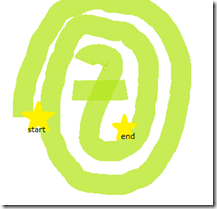
I made it past the twitter maze.
I joined twitter this weekend, after I deleted my Facebook account (which I sort of regret), and for the past couple of days, I have been sending out pointless ‘@messages’ to random people (on twitter) just to figure out how it actually works. Don’t worry if you don’t know what these ‘@messages’ are-that’s why I’m writing this post.
I am happy to announce that I finally understand this world of twitter and want to share some basics with others who might still be confused.
Here’s the un-official Twitter Guide:
Twitter is a social networking site that keeps you in touch with your current as well as prospective friends, family, employers, employees, etc (?). It’s like facebook because you constantly update your status to reflect your current financial/emotional/mental/etc. state. However, there is a shorter word limit to these statuses (only 140 characters) and there is a new ‘code’ you have to learn in order to send your messages to specific people.
I just want to make some things clear before proceeding:
-If you want to send direct messages to someone, the recipient of that direct message needs to be following you in order for him/her to get that message.
-If, however, you want to send a ‘shout-out’ to someone, that person need not be following you (and you don’t need to be following them either).
Now, let me explain what each of the above means:
-A “direct message” is a message that only the recipient can see (i.e. it is not posted on their homepage, but they get it in their ‘direct message’ link on the right side of their homepage). It’s like the facebook’s inbox feature. If you want to tell someone something privately, you would use the inbox on facebook. Similarly, “direct messages” is twitter’s private messaging system.
To send a direct message, type: d username message. For example,
d rukhparmor I LOVE your blog!
-A “shout-out” is actually called an ‘@reply’ or ‘@mention’ in twitter. It’s like writing on someone’s wall on facebook.
To send an ‘@reply’ , type: @username message. For example,
@rukhparmor You are so AWESOME!
To send an ‘@mention’ , it basically means that you are mentioning that person’s name in the body of your twitter message. For example,
@rukhparmor did you know that @XYZ is single?
(the person with the username XYZ will also get this message since you have the ‘@’ symbol in front of their username)
Now you know how to send messages on twitter. You should also know how to find the messages you have received.
On the right side on your homepage, you will find a box with your username on top and ‘following’ and ‘followers’ right below it. If you look under that, there is a menu that has these options:
‘Home’, ‘@username’, ‘Direct messages’, ‘Favorites’, ‘Retweets’
If you want to see who mentioned you in their message or if someone sent a ‘shout-out’ to you, click the ‘@username’ option.
If you want to see your direct (private) messages, click the ’Direct messages’ option, and so on.
I hear that there is a lot more to twitter, but this is where I’ll stop.
The above guide will hopefully make your journey with twitter a bit more pleasant and enjoyable. :) Don’t forget to follow me on twitter!




![clip_image002[6]](https://blogger.googleusercontent.com/img/b/R29vZ2xl/AVvXsEhhui0tZeQKe84k0FYa2OERzNmf-ABSQqMobV2Im-iy5Tp3JlaUsIlsogv5wl2s1jKrL4PhNoPll9VbCITblckr_iOlQUlPpBam8bBxry4eMDNh8lgxdskGoqDk03tlXq-M5iPaMoy04bG9/?imgmax=800 "clip_image002[6]")
![clip_image002[10]](https://blogger.googleusercontent.com/img/b/R29vZ2xl/AVvXsEiFoGtLm4MVK6kBMvUG7DevS5Hga4HOKEwxFNir0PLoEtquM1C8NBF2VIWRn7w4gTBGmTZmmKPe1QTXMZgP3z0fXZVNNDXSseDOgJY7Mw0NZ5sXivav1wzR20OZUoD1fa21JUzK742GFRXE/?imgmax=800 "clip_image002[10]")
![clip_image002[12]](https://blogger.googleusercontent.com/img/b/R29vZ2xl/AVvXsEj5r_-D83kndvCP32V_MFebetodurEJFdpanK4SjggestXW9-7zIM6UOGttDBOIeDgA94q68FAcN7CHF6Ve49_nO5gsyimElUDumdIjUAqoh6KfM13SgHlnTrgVWKwbuH3ZSvQHuIBG_uEF/?imgmax=800 "clip_image002[12]")
![clip_image002[14]](https://blogger.googleusercontent.com/img/b/R29vZ2xl/AVvXsEjXzsH8-WKWdgGsH50HySuQrObVXurnFVoJgNLnJqeVWCXFh8-WWaCtt4me7fFL8jsXWKovs_fAwFG-cnhm8BSUvI_RXSWSfplAqUjVlgz6Pb822hm3F9Y1hKJASDDfhgfJsf9oAECyrAcu/?imgmax=800 "clip_image002[14]")
![clip_image002[16]](https://blogger.googleusercontent.com/img/b/R29vZ2xl/AVvXsEil7WraN3aBbXNQLJFy0IqZE9UdZaqiEHn2jtcT7OQNIXHwZ20BzmAcxsthJYbvvGEAzcUkk9xXJGQNjwUpW-P-htQfLNLzSSqwpuxpb8jBCyviBHmAUz6RYP5qCkdhiLT68DAhwRhJHJVg/?imgmax=800 "clip_image002[16]")


